Your Real-Time AI Call Assistant
Get the right answer while you're still talking, through sales calls, client meetings, or any conversation where freezing up isn't an option.

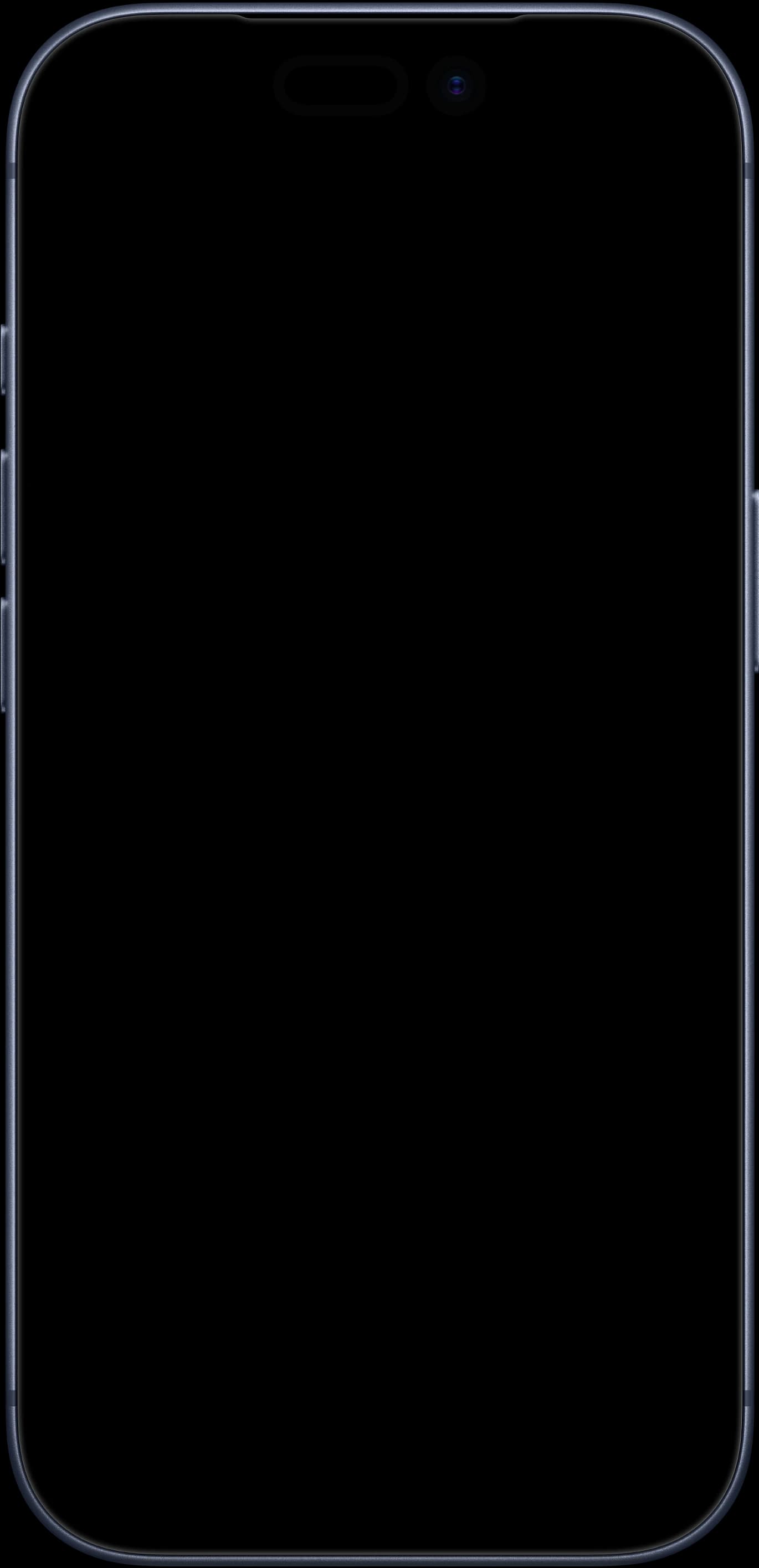
Everything You Need, Mid-Conversation
Code, speech, and answers, handled live while the call is still happening.
Built For Technical Calls
Support escalations, integration reviews, architecture walkthroughs. It reads the code shared on your screen and talks the fix through with you while the call is still going.
Blazing Fast Transcription
We use a state-of-the-art transcription model that provides
a highly accurate model in recent breaking speed.
100% Accurate Responses
We chose between the best LLMs available to provide
the most accurate answers.
Before, During,
And After The Call.
CodeBoss runs in the background, knows your material, and handles the call from start to notes.
Auto Answer
Detects questions live and suggests answers, so you're never caught blank.

Auto-detect meetings
Spots meetings as they start and asks if you want to join, with no setup mid-call.
Documents
Upload briefs, notes, or playbooks to reference live during your call.
AI Notes
Key points, action items, and decisions, summarized after every call.
Connect to your actual call by sharing the call tab.
Practice against an AI caller instead of a Real Session.
Mock Sessions
Join a real call, or practice with an AI caller. Your first mock is free.
Transparent Pricing Options
Subscribe for unlimited peace of mind, or buy credits and use them whenever.
Unlimited
RecommendedStop counting. Everything covered, for as long as you need it.
- Unlimited call sessions


Your Advantage, Anywhere
Desktop app, web, or mobile. Same powerful answers, wherever you are.
Works directly on Your Browser
Access CodeBoss instantly from your browser. Same answers, zero setup.

Frequently Asked
Questions
Couldn't find what you were looking for?
CodeBoss supports 50+ languages — you'll find the full list in the language dropdown when you start a session. It listens for one language at a time, so if you switch languages mid-call, update the session language to match.
Yes. CodeBoss offers full coding support, including code suggestions and explanations, on any call where code comes up.
Yes. When you are asked to design or draw a system — its architecture, components, how they connect or how data flows — the answer ends with a small flowchart of it under the written answer, so you can follow it while you draw it yourself. With the Bullet points answer format the diagram is often left out; Script + bullets or Full script shows it. Other questions get no diagram. If a diagram can't be drawn, you see its text as a code block instead. In the desktop app this needs the latest version: an older one gets the written answer without a diagram, so update the app if you don't see them.
CodeBoss uses any documents you've added and anything you type into the Instructions field when you create a session. You can paste a lot in there — an entire brief or document is fine. You can also send CodeBoss messages during the call itself.
Yes. CodeBoss supports phone calls over Google Voice. Start a session in the browser and click the phone icon for setup instructions. If the call has to stay on your phone, put it on speaker and turn off system audio in the desktop app (the laptop button): it then hears you both on your mic, so an answer may now and then respond to you.
On a phone, the call screen answers from what it hears: press Answer, or let Auto Answer respond on its own. For a question that's shown rather than spoken, such as a coding problem, press the image button beside Answer and take a photo of it or pick one from your photos: it's sent straight away for an answer, one photo at a time. Typing your own question in the chat box, and screenshots, are on a computer: the desktop app, or desktop Chrome.
The desktop app runs on Windows and macOS; in a browser, CodeBoss needs desktop Chrome, which is also the way to use it on Linux. Other browsers aren't supported for live sessions, and the desktop app works whatever your default browser is.
You can choose the AI model when you create or edit a session, from the model dropdown. Options include several Gemini, GPT, and Claude models, with a fast default selected for you. Lighter models respond faster; larger models can give more detailed answers. If your remembered model ever changes on its own, an app update either reset it to the current default or moved a retired model to its replacement (Claude 4.5 Sonnet now runs as Claude Sonnet 5, and GPT-5.6 Sol as GPT-5.6 Terra) — just pick your model again.
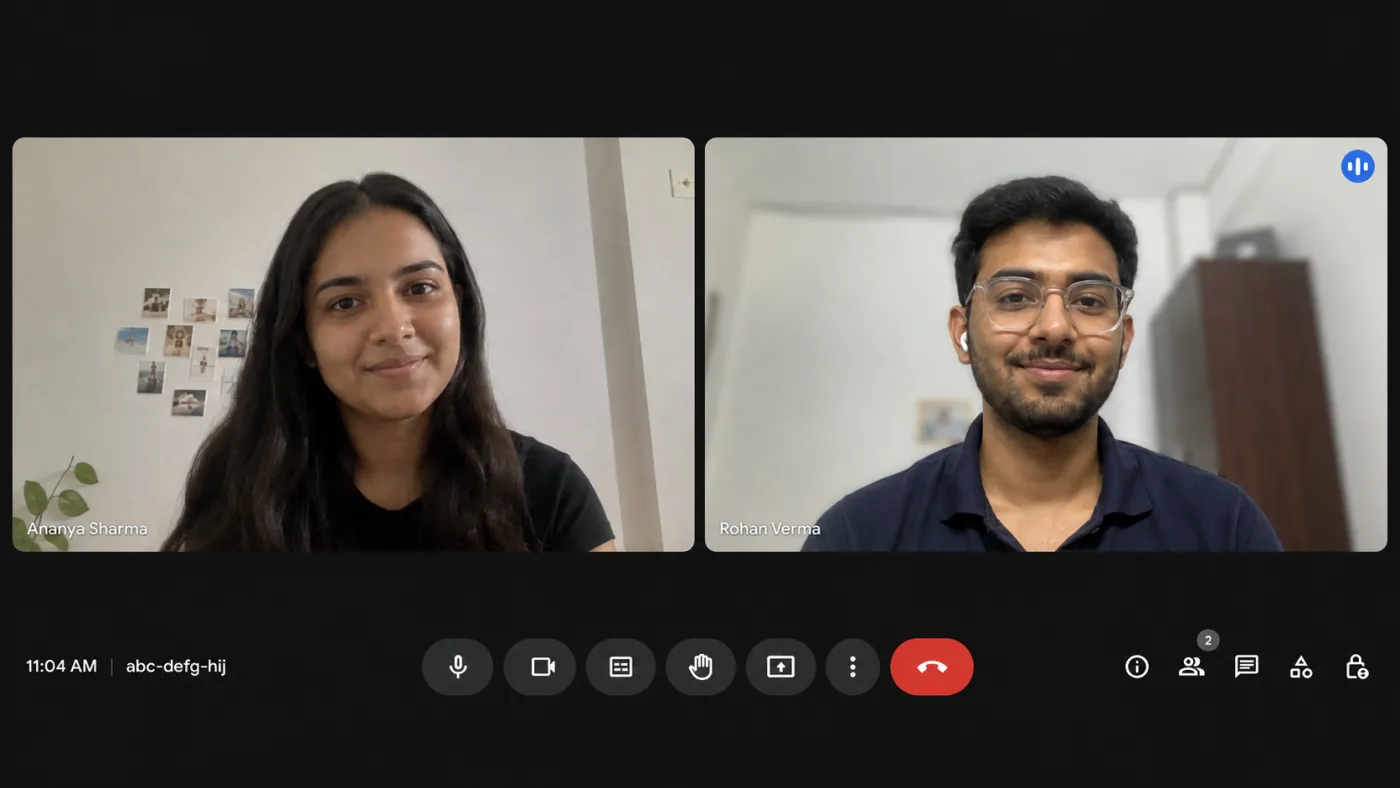
Meetings, sales calls, client conversations, support escalations — anything you talk through live. Pick regular call when you create a session and CodeBoss follows along with whoever you're speaking to. Documents, instructions, transcripts and notes work the same on every call.
The button in a live session reads Exit while the session can be come back to, which is a free or credit session with time on its timer, and End when it can't. Exit asks which you want: Leave for now keeps the timer running and takes you back to the dashboard, and the session's card (under Up next on a phone) keeps its Join session button until the time runs out; End session stops the timer, after which you have 5 minutes to pick it back up for 0.5 credits. On a plan that covers calls there is no timer to leave running, and the intro session can't be rejoined or extended, so there the button reads End and ends the session at once. It works the same on a computer, in the desktop app and on a phone.
Ready To Answer
Every Question?
No credit card required.